


Estás suscrito a Chefbook
Barra libre de artículos de viajes
SUSCRÍBETE a Chefbook por 2,99€/semana
IVA incluido y no te pierdas nada.
How to Migrate Your Minecraft Java Account to Microsoft?
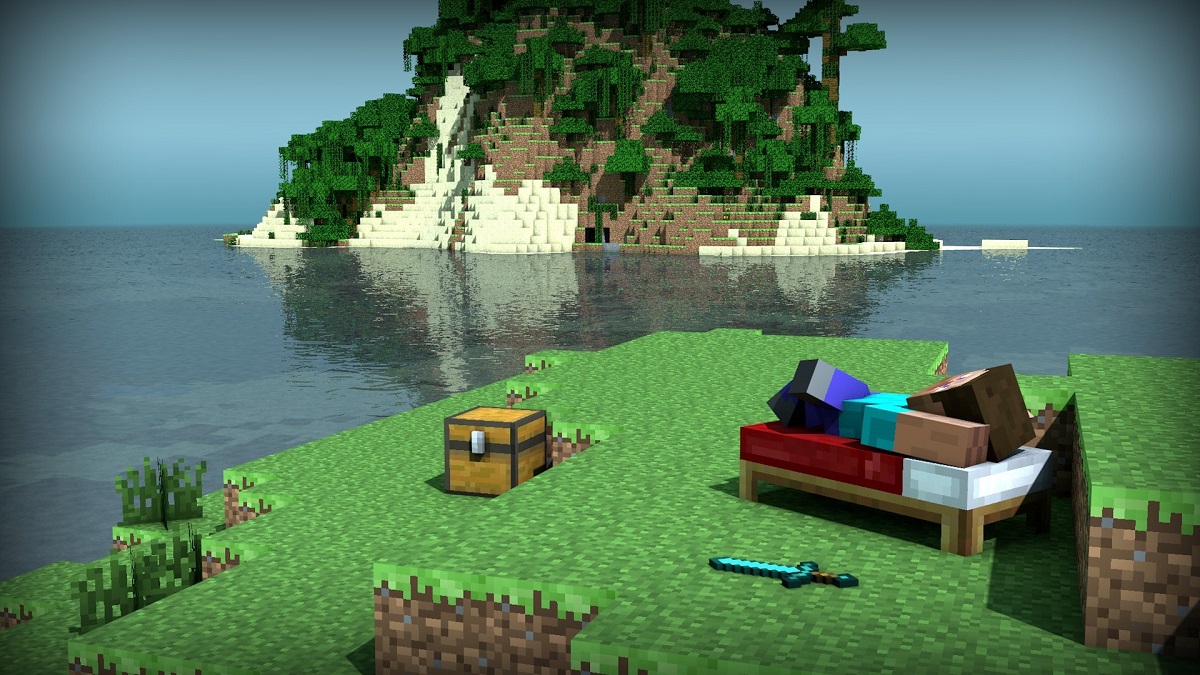
Dedicated players of Minecraft Java Edition need to prepare for a significant account transition from Mojang to Microsoft, according to a recent announcement from Mojang Studios. This decision will bring significant changes in how you access your beloved game.
- The transition to a Microsoft account has several reasons:
- Security Enhancement: Migrating to a Microsoft account offers two-factor authentication, thereby enhancing security by making unauthorized access more difficult.
- Game Centralization: All PC Minecraft games will be connected to a single account, currently including Minecraft and Minecraft Dungeons, with the possibility of other titles in the future.
- Improved Parental Control: This transition improves parental control to maintain children's safety during their online gaming sessions.
- Blocking Messages and Invitations: You will have the option to block unwanted messages and invitations from chat.
It is crucial to note that this migration is mandatory. Without this transition, you risk losing access to your Mojang account in a few months, meaning you won't be able to play Minecraft anymore.
Once the migration is complete, all your content on your Minecraft Java account will be preserved, including mods, skins, and the ability to play with your friends on Minecraft Java servers, regardless of the version. Your Minecraft Java username will also be retained, with the added bonus of a special cape offered once the transition is complete.
The migration process takes place in several steps. If you already have a Java or Mojang account, you must begin the migration at the beginning of 2021. New players acquiring Minecraft Java for the first time will directly create Microsoft accounts starting in the fall of 2021.
Here's how the migration process unfolds step by step:
- Receive an alert in your Minecraft launcher.
- Click on the "Get Started" button to initiate the migration.
- Go to Minecraft.net and click on "Move my account."
- To validate your identity, click on "Get code" to receive a code via email.
- Check your email inbox for an email from Mojang containing the migration code.
- Copy the code and enter it on the Minecraft.net website.
- Select your Microsoft account if it's already associated with the email address, otherwise create one.
- Once this step is completed, a message on Minecraft.net will confirm successful migration.
- Click on "That's it" to finalize the migration.

